
## The Problem
I run a NUC at home called Polaris. It sits under my desk, runs 24/7, serves APIs, hosts containers, and does all the things I've written about in previous posts.
I had Portainer running. Portainer is the standard answer to "I want a UI for Docker" — and it does the job if you want to manage containers. Networks, volumes, stacks, registries, deploy configurations. Very complete. But every time I opened it to answer a simple question — "is this service still running?" or "what port does that thing use?" — I had to work through several layers to find out. It was built for container management, not for understanding what you have.
The second problem was access. I had a dozen services running on the server with no single place to open them. Every time I needed to check Nextcloud or open a dashboard, I was typing out a localhost address from memory or hunting through notes.
What I wanted was simple: one screen that showed everything running, its current status, and a link I could just click to open it.
## The Approach
Rather than spending time looking for an existing tool that fit exactly, I described the problem to Claude Code and asked it to build one.
This has become a pattern for me — I've written about it before with Android projects. The calibration I've learned: the more clearly you can describe what you want to feel, the better the output. Tools don't have feelings, but products do. "Simple dashboard that tells me what's running and what's down" is a clearer brief than a list of features.
The spec I handed over covered:
- A card grid showing every service with health status and latency
- Health checks running on a configurable interval
- Telegram alerts when something goes down or recovers
- 2FA via authenticator apps (no SMS, no email — proper TOTP)
- A dark/light/auto theme
- Self-hosted, Docker-first, no cloud dependencies
I was also specific about constraints: localhost and LAN IPs only in service URLs (this isn't a public-facing aggregator), and the whole thing should run in a single Docker container on port 3010.
## What Got Built
The project is called Orbiter. It runs as a Docker container on Polaris. Everything connects through the WireGuard tunnel or LAN — it's never exposed publicly.
### The Dashboard
The main view is a card grid — one card per service. Each card shows the name, description, category, URL, and a status dot: green for online, red for offline, grey for unknown. Latency shows in the corner when the service is reachable.
There's a list view if you prefer rows. A search bar, category filter pills, and a status dropdown let you slice the list. Adding, editing, and deleting services is a form with validation — URL must be a private host, no public IPs allowed.

### Health Checks
Health checks run server-side on a configurable interval (default 30 seconds). The server makes a request to each service's URL and records whether it responded, what the HTTP status was, and how long it took. The client polls on the same interval and updates the UI.
### Telegram Alerts
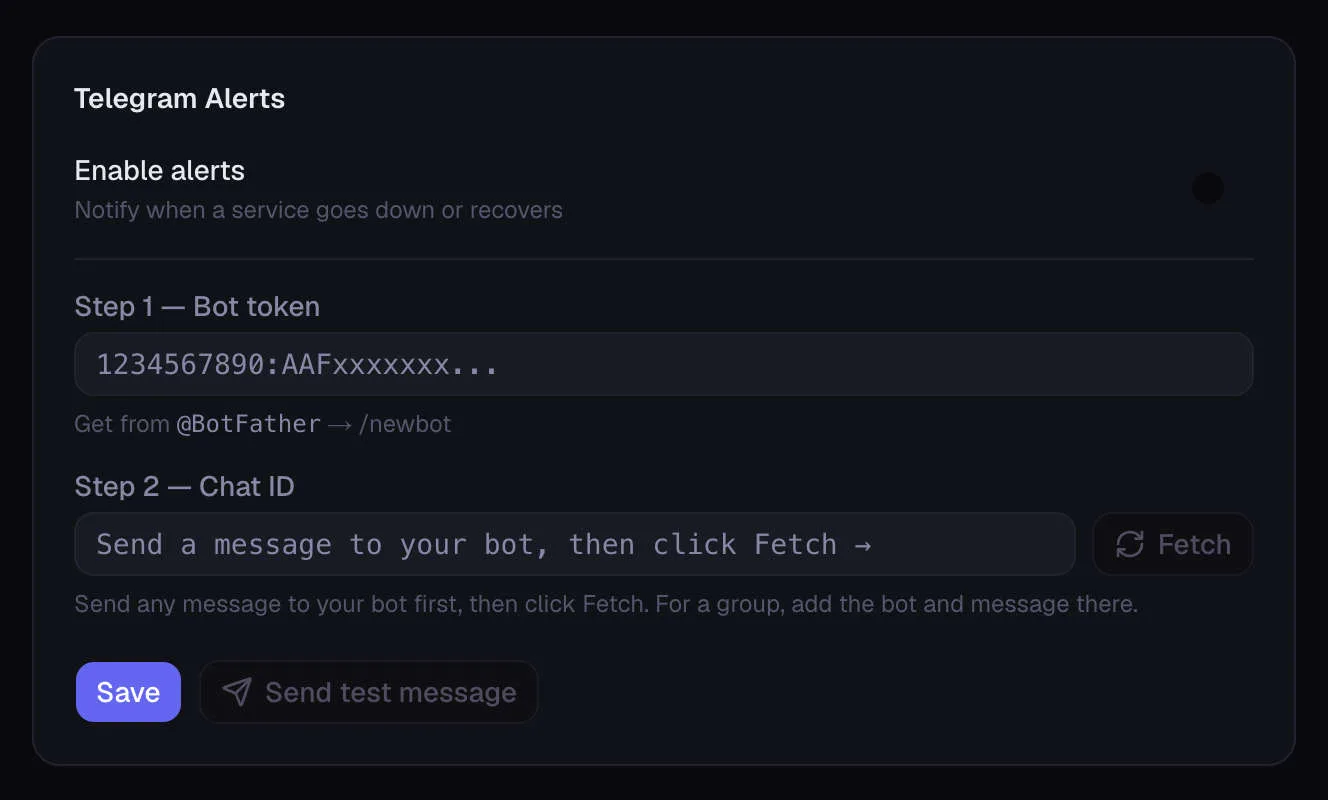
When a service transitions from online to offline — or back — Orbiter fires a Telegram message. The settings page has a two-step setup: paste your bot token, click "Fetch chat ID" to auto-populate it, and test the connection. After that it's silent until something breaks.
I've had three alerts since setting it up. All three were real.
### Auth
Login is username, password, then a TOTP code from any authenticator app. No SMS, no email codes. The TOTP secret is generated on setup and you scan the QR code with your phone. Standard flow, works with Google Authenticator, 1Password, whatever you prefer.
Sessions are encrypted cookies via iron-session. The setup wizard runs on first boot — fill in credentials, scan QR code, confirm a TOTP code, done.
### Service Discovery

This was the feature I didn't plan but ended up being the most interesting to build.
The idea: instead of manually adding services, let Orbiter scan the server and suggest what it finds. The implementation runs a TCP probe across all 65,535 ports in batches of 1,000 — about 11 seconds on my hardware. For every open port, it makes an HTTP request and matches the response against a fingerprint dictionary.
The dictionary has entries for over 1,200 self-hosted services — body patterns (regex matches against the HTML response) and header patterns (distinctive response headers). Portainer matches x-portainer-* response headers and "portainer" in the page title. Grafana matches "grafana" in the body. Jellyfin matches "jellyfin". Each match returns the service name, a suggested category, an emoji icon, and a short description.
For services that respond to HTTP but aren't in the dictionary — a custom app, something obscure — it falls back to the process name from ss -tlnp. So a custom service running under a process called "nebula" shows up as "Nebula" with a generic icon instead of disappearing silently.
The UI shows discovered services at the top of the dashboard in a separate section. Each one has a "+" button that pre-fills the add form — name, URL, icon, category — without auto-submitting. You review it, adjust if needed, and add it.
### WireGuard
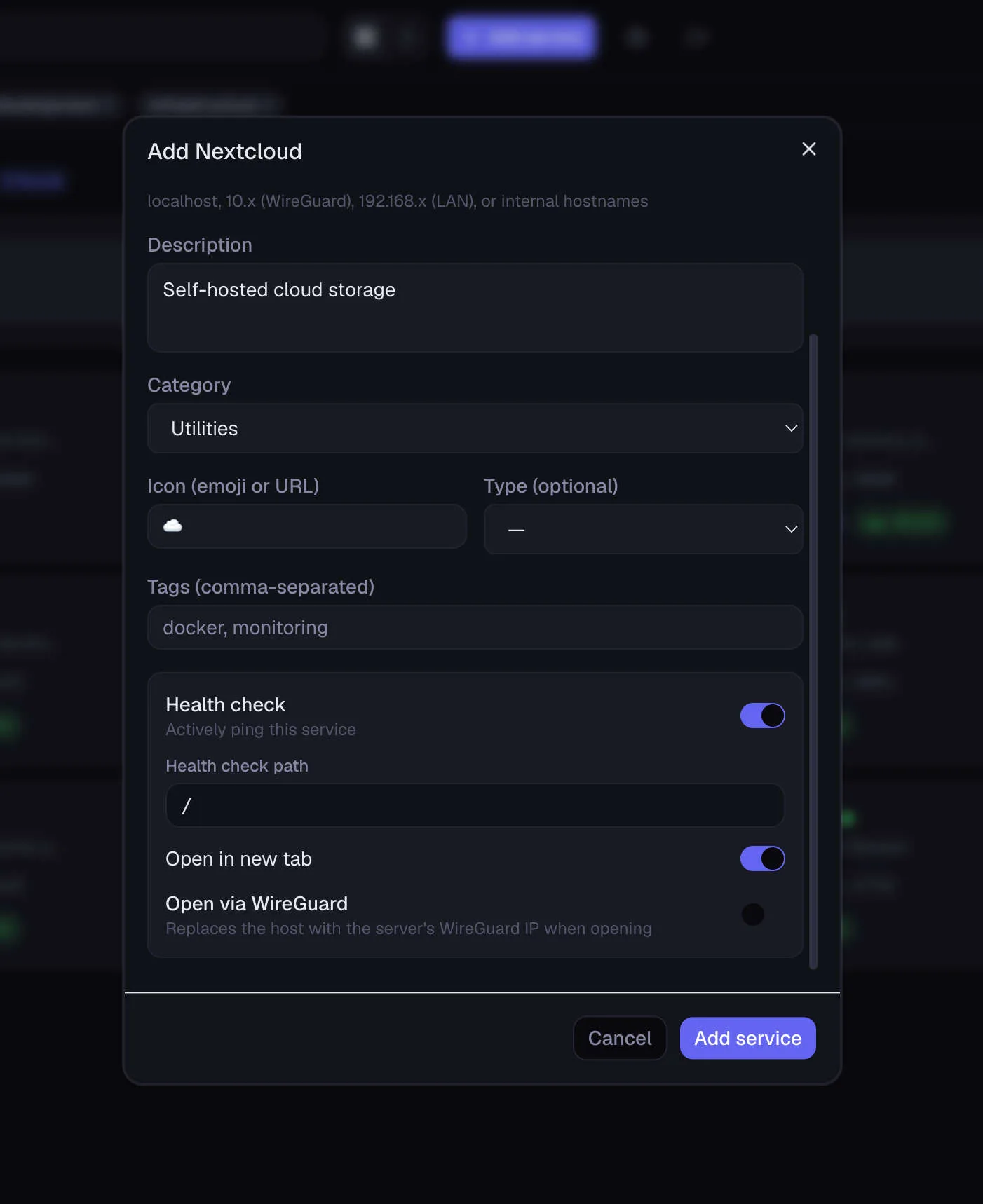
All the service URLs I add are localhost addresses — http://localhost:9000, http://localhost:3001. That's what the health checks ping. But when I want to open a service from my Mac over WireGuard, the URL has to use the WireGuard IP, not localhost.
There's a checkbox on each service: "Open via WireGuard". When checked, Orbiter detects the server's WireGuard interface IP at runtime and substitutes the hostname at click-time. The stored URL stays as localhost (for health checks), but the link in the card opens via the VPN IP. A badge on the card shows which IP it's using.
## The Rough Edges
A few things weren't clean from the start.
The setup redirect loop
First deployment, every page redirected back to /setup even after completing setup. The cause: Next.js statically rendered the setup check at build time. At build time, auth.json doesn't exist yet. The static output was a permanent redirect to /setup — and it stayed that way forever. The fix was two lines (export const dynamic = 'force-dynamic'), but finding the cause took longer than it should have.
The session cookie
After fixing the redirect loop, 2FA verification was throwing "Invalid session state". The session cookie had secure: true in production, which means it only sends over HTTPS. The app runs over plain HTTP on the LAN. The cookie was being set on login but the browser refused to send it on the next request because it wasn't HTTPS. Changed the flag to opt-in via an environment variable.
Service discovery inside Docker
The container uses network_mode: host so it shares the host network stack — otherwise localhost service URLs wouldn't work. This means ss -tlnp and lsof can see listening ports. What they can't see (without --pid=host) is the process names for services running in their own Docker containers. Port is found, process name is blank, service shows up as "Service :PORT". Worth knowing if you're running everything in containers.
HTTPS-only services
The original fingerprinting code probed every port as HTTP. Portainer's default HTTPS port (9443) only accepts HTTPS — an HTTP probe gets an immediate TLS error and the port was silently skipped. Fixed with an HTTP-first, HTTPS-fallback probe: if the port doesn't respond over HTTP, retry as HTTPS with a non-rejecting certificate agent.
## What Surprised Me
The agent consistently pushed the feature set beyond the brief in useful ways. I asked for health checks — it added latency display without being asked. I asked for Telegram alerts — it added online recovery alerts, not just downtime. I mentioned WireGuard as a concern — it proposed a per-service toggle instead of a global setting, which turned out to be the right call since some services I only want to access locally.
The fingerprint dictionary was built by a multi-agent workflow that scraped the entire awesome-selfhosted dataset in parallel. Batch the YAML files, extract fingerprint rules for each service, deduplicate, write to disk. I gave the instruction; the agent designed the parallelism strategy, ran it, and committed the result.
The part that consistently requires the most back-and-forth: visual design details and layout edge cases. The long-description overflow bug — where a service with a long description pushed the edit button off the card — was something the agent didn't catch proactively. Neither did I until it was running on real data. Those surface-level quality issues require actual use to find.
## Where It Stands
Orbiter has been running on Polaris for a few weeks. The setup is:
- Docker container,
network_mode: host, port 3010 - Accessible over WireGuard and LAN
- Health checks every 30 seconds
- Telegram bot fires when something changes state
- Service discovery scans on demand
Everything I add to the server goes into Orbiter. I scan for new services after a new install. I check the dashboard from my phone when something feels off. The last time I wondered "is this thing still running", I had an answer in three seconds.
That's the brief it was built to. It does that well.
The deploy script is a single bash file — clone, run the script, open the setup wizard.